


How to Use a Third-Party Relay API Key in Claude Code and Claude Desktop: Configuration Principles and Local Gateway Guide
Connecting Claude Code or Claude Desktop to a third-party relay API key requires routing client traffic through a custom endpoint while handling model configuration and API format differences. Using Little Mungbean, a free and open-source local AI gateway manager, you can connect relay providers, inject model lists directly into Claude clients, and convert API protocols locally without manually editing configuration files.
Prerequisites
Before configuring the local gateway, prepare the following:
- Little Mungbean: Download and install the application from the Little Mungbean GitHub repository.
- Claude Client: Have Claude Code or Claude Desktop installed, or use Little Mungbean's built-in one-click installer to set up the client.
- Relay Credentials: Obtain a valid API endpoint URL and API key from your third-party relay provider.
Step 1: Add the Third-Party Relay Endpoint and API Key
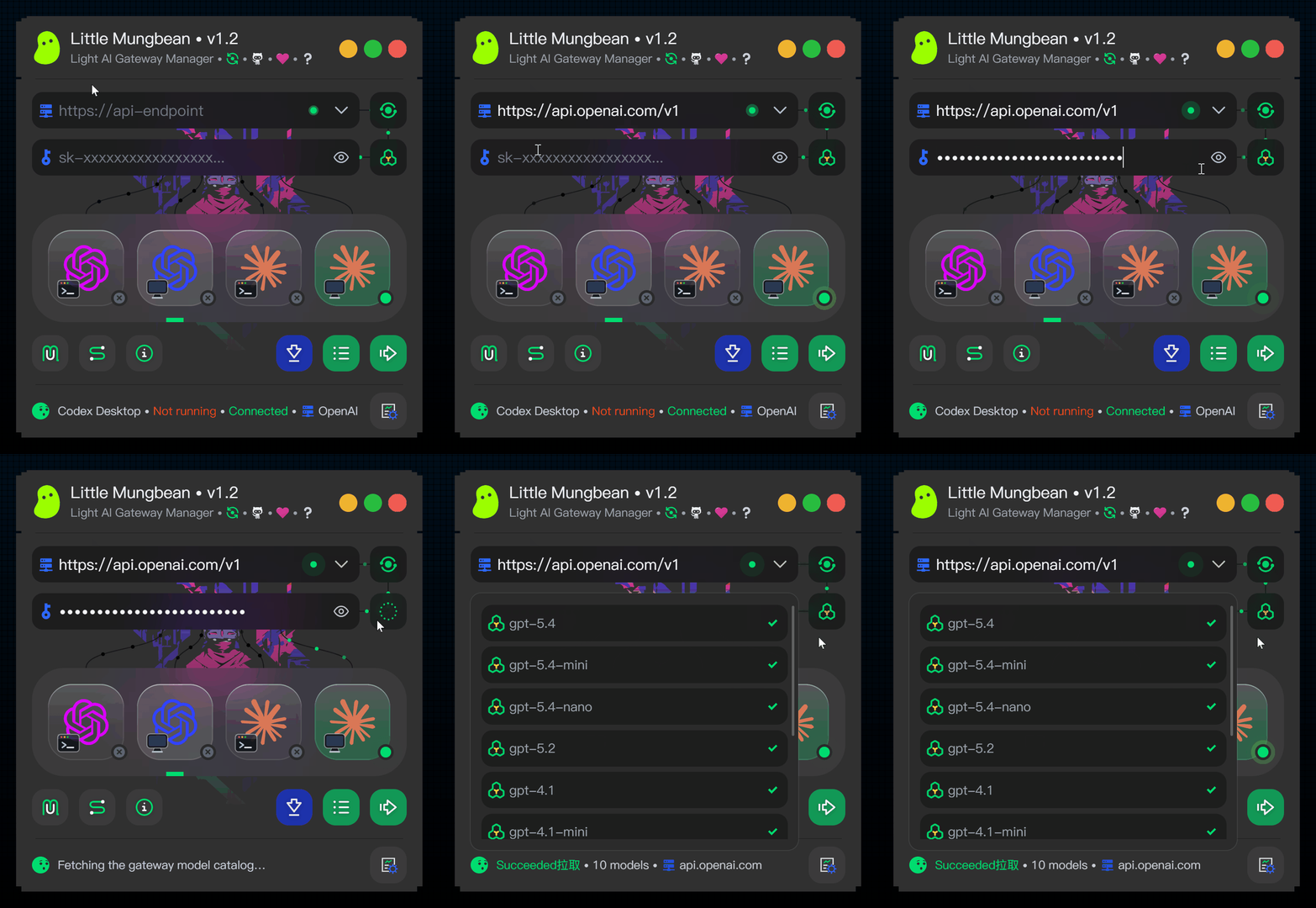
Open Little Mungbean and add a provider entry for your relay service. You can select a provider preset to fill in the API endpoint automatically, or manually enter your third-party relay's endpoint URL and API key.
If you manage multiple relay stations or keys, you can rename, delete, or drag provider cards to reorder them, making it easier to switch active providers across different Agent clients.
Step 2: Fetch and Select Available Models
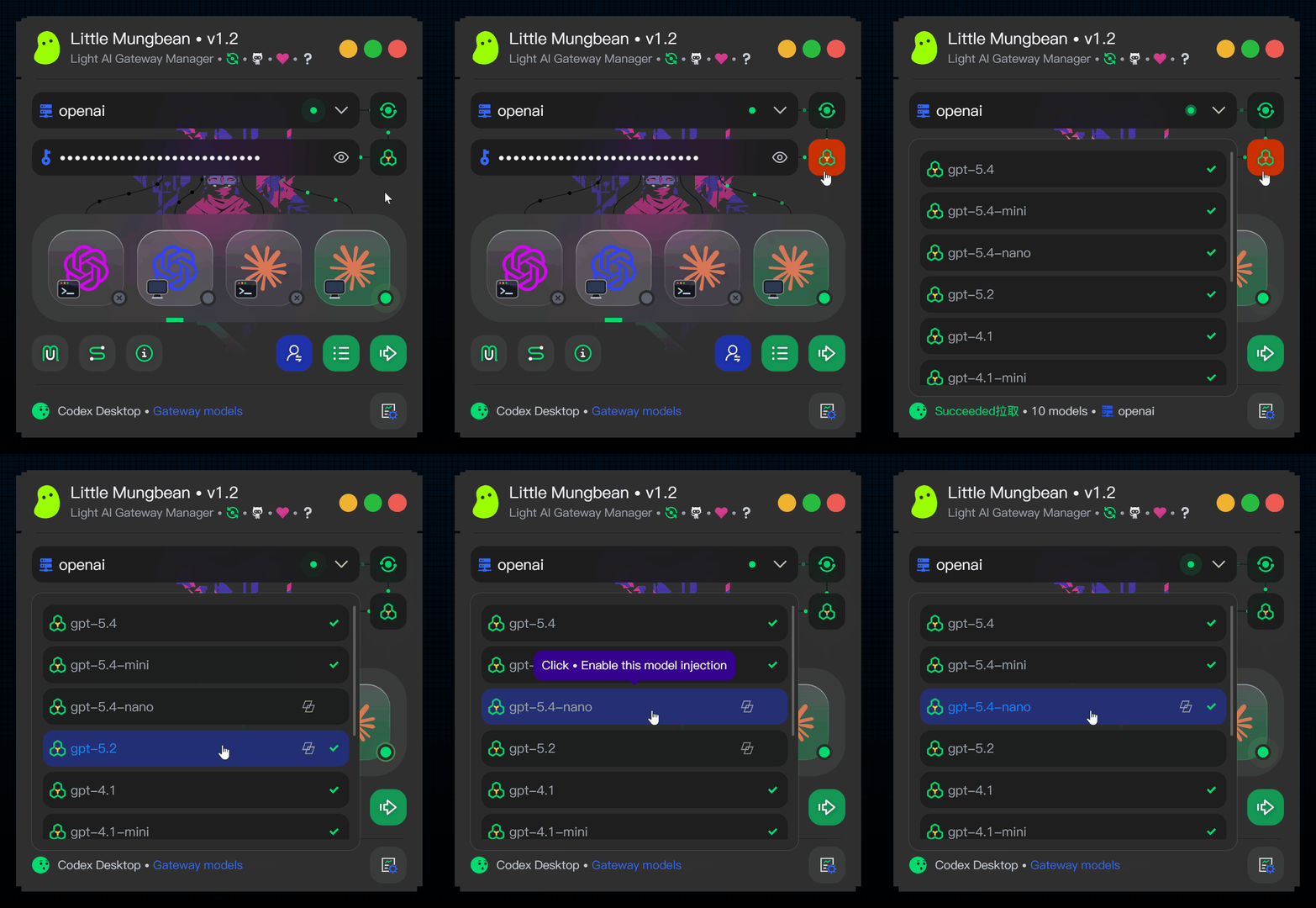
After entering the endpoint URL and API key, click Fetch Models. A successful fetch confirms that your endpoint URL and API key are valid and that your machine can reach the relay provider over the network.
Once the model cards load, click individual cards to enable or disable which models will be injected into Claude Code or Claude Desktop. If fetching models fails, verify that the endpoint URL and API key are accurate; if the credentials are valid but the connection times out, configure a local system proxy so your computer can reach the provider's API.
Step 3: Configure Model List Injection
Unlike tools such as CCswitch that map upstream models onto fixed built-in slots, Little Mungbean injects the model configuration directly into the Agent client. This allows you to view and switch the exact model names inside Claude Code or Claude Desktop.
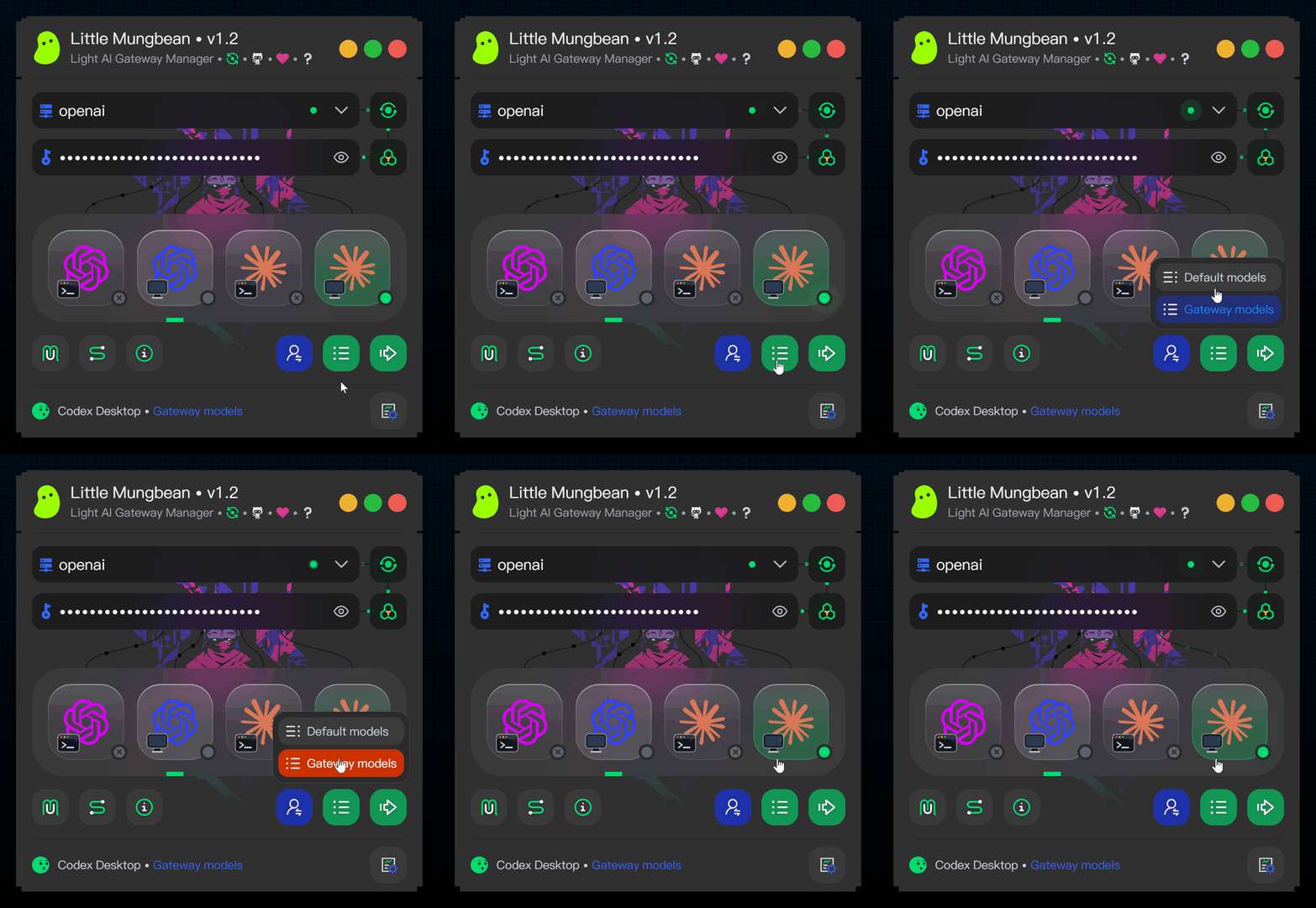
Choose one of the two injection modes based on the models your relay provides:
| Injection Mode | How It Works | When to Use |
|---|---|---|
| Default model list | Populates only the client's built-in slots for its native model family, excluding cross-family models. | You only use Claude models through the relay. |
| Gateway model list | Injects the full gateway model list into the client, including models from other families. | You want to use both Claude and non-Claude models (such as GPT, Gemini, or Grok) inside Claude clients. |
Step 4: Set Up Local Protocol Conversion for Cross-Family Models
Claude Code and Claude Desktop communicate using the Anthropic Messages API format. When you route requests to
Updated